Convert FBX to VRM — one export to GLB, then no Unity at all
FBX is how most rigged characters travel - Mixamo, asset stores, older game pipelines. VRM is built on glTF, not FBX, so every route from one to the other passes through glTF somewhere. The shortest route makes that one step explicit and skips everything else.
To convert an FBX to VRM, first turn the rigged FBX into a GLB: in Blender (free), File > Import > FBX, then File > Export > glTF 2.0 with the format set to glTF Binary (.glb). Upload that GLB to Riggle, mark the lips and eyes in about twenty seconds, and download a VRM 1.0 with the bones mapped, five visemes, blinks and three emotions. Riggle does not take FBX directly - it accepts .glb and .vrm - so the Blender export is the only step outside the browser.
Why FBX has to become GLB first
A VRM file is a glTF binary with avatar extensions. Whatever converts your character has to produce glTF in the end, and FBX import is the most fragile part of any 3D toolchain - scale units, axis conventions and embedded textures vary by exporter. Doing that one conversion yourself, in a tool where you can see the result, beats uploading an FBX and hoping.
It also means you only fight FBX once. Everything after the GLB - the bone mapping, the pose correction, the face - is the same as for any GLB to VRM conversion.
Step 1 - export the FBX to GLB in Blender
- Open Blender and delete the default cube, camera and light (select all, delete).
- File > Import > FBX (.fbx) and choose your file. The defaults are fine.
- Check it: the character should be visible with its armature. If textures are missing, they were not embedded in the FBX - point the materials at the image files before exporting, or the VRM will be grey too.
- File > Export > glTF 2.0 (.glb/.gltf), set Format to glTF Binary (.glb), leave mesh compression off, and export.
You do not need to fix the scale, the facing direction, the pose or any animation the FBX carried. Mixamo characters arrive in centimetres, many FBX files face the wrong way, and some are in an A-pose - Riggle measures and corrects all of that itself.
Step 2 - upload the GLB and mark the face
Drop the .glb into Riggle. It maps the skeleton (Mixamo's mixamorig: names, Character Creator, VRoid and Tripo are recognised by name; other rigs are matched by name pattern and hierarchy), then shows you a front view of the face and asks for five marks:
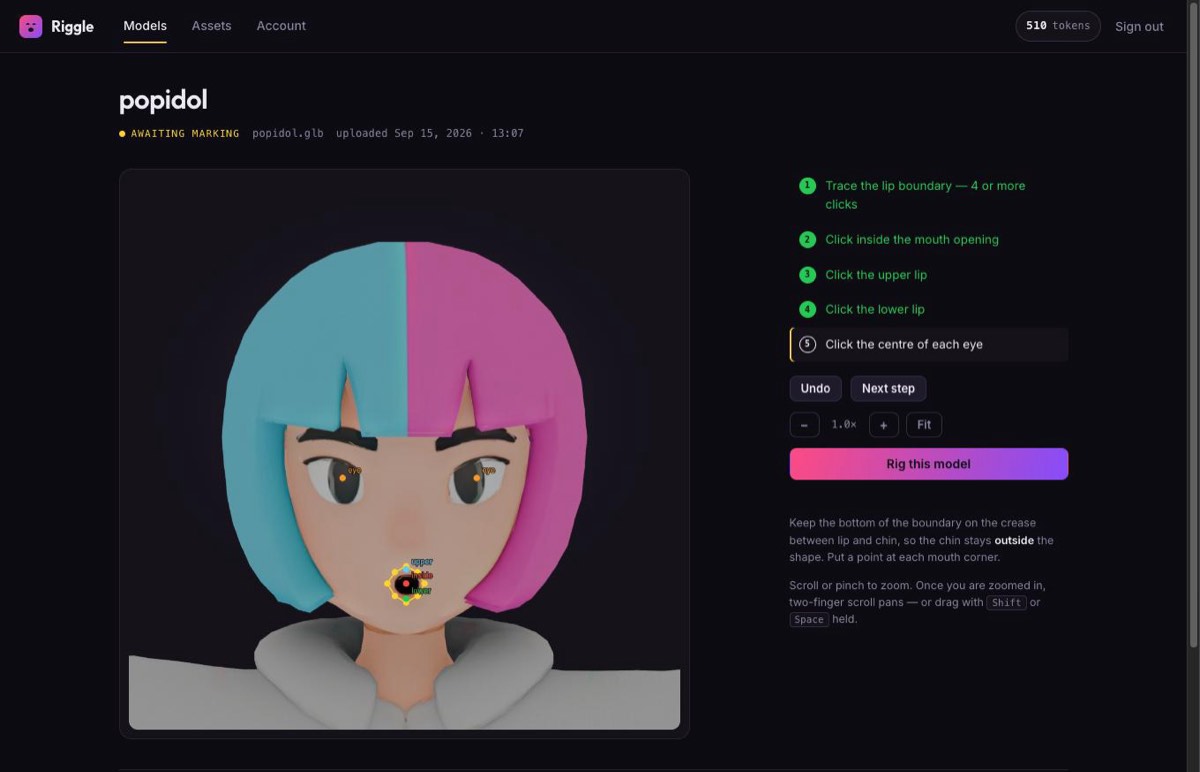
- Trace the lip boundary - four or more clicks around the outer edge of the lips, with a point at each corner and the bottom edge on the crease above the chin.
- Click inside the mouth opening.
- Tag the upper lip, then the lower lip - one click each.
- Click the centre of each eye - this pins the blink.
About a minute later the VRM is ready.
What you get back
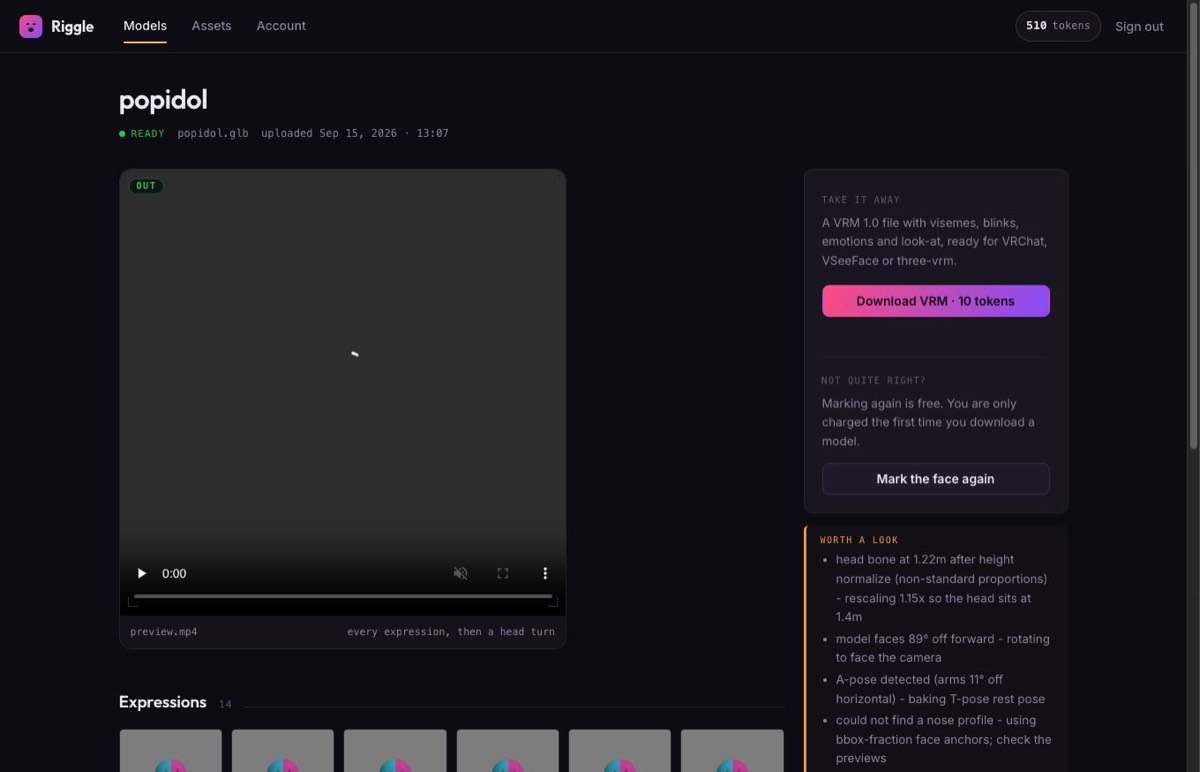
The download is a VRM 1.0 with the humanoid bones mapped and the expression set bound: the five visemes (aa, ih, ee, oh, ou), blink with independent left and right, happy, angry and surprised, and eye look-at when the rig has eye bones. Before you pay anything, Riggle loads the file in a real VRM renderer, drives every expression, and shows you a video of the whole set - an expression that exists but does not visibly move is flagged rather than shipped.
What it does not do: it does not rig an unrigged mesh (the skeleton has to be there already), it does not build the 52-shape ARKit "perfect sync" set - see why perfect sync is a different job - and it cannot invent teeth and a mouth cavity that were never modelled. A character whose mouth was generated closed still converts, but its visemes are a softer procedural approximation.
If the FBX came from Mixamo
Mixamo is the most common source of rigged FBX files, and it has its own quirks - which download options to pick, and the fact that its auto-rig gives the face nothing at all. The Mixamo to VRM guide covers that path end to end.
Exported your GLB? Make it a VRM
Upload the GLB, mark the face in twenty seconds, and see every expression play back before you download. Your first model each month is free.
Rig my modelFAQ
Can Riggle open an FBX directly?
No. Riggle accepts rigged .glb and .vrm files up to 100 MB. Export the FBX to GLB in Blender first - it is free, and the export takes two menu clicks.
Can I convert FBX to VRM without Unity?
Yes. Blender handles the FBX-to-GLB step, and Riggle does the GLB-to-VRM conversion in the browser, including the face. Unity and UniVRM are not involved at any point.
My FBX has animations. Is that a problem?
No. Riggle returns the model to its bind pose before converting, so an animation clip in the file does not end up baked into the avatar. The VRM does not carry the animation.
The GLB is grey in Blender. What happened?
The FBX referenced its textures as external files instead of embedding them. Re-link the images in the material settings (or place them next to the FBX and re-import), then export the GLB again.
Does the FBX need to be rigged?
Yes. Riggle maps an existing humanoid skeleton onto VRM bones; it does not create one. If your FBX is a plain mesh, Mixamo's free auto-rigger will add a skeleton.
Will the VRM work in my VTuber app?
Riggle exports VRM 1.0. Apps built on three-vrm, and other software that reads VRM 1.0, load it as-is; some VTuber software still only reads the older VRM 0.x and will refuse a 1.0 file. Check which version your app supports before you plan a stream around it.
How much does it cost?
Uploading, marking, re-marking and every preview are free. Downloading a finished VRM costs 10 tokens, once per model, and the free plan includes 10 tokens a month - one finished avatar a month at no cost.