Mixamo to VRM — the body is rigged, now give it a face
Mixamo's auto-rigger is the fastest free way to put a skeleton in a humanoid mesh, and its skeleton maps onto VRM almost bone for bone. What it gives the face is nothing: no jaw, no morph targets, no way to speak or blink.
To turn a Mixamo character into a VRM: download it from Mixamo as FBX with skin, export that FBX to GLB in Blender (File > Import > FBX, then File > Export > glTF 2.0 as .glb), and upload the GLB to Riggle. Riggle recognises Mixamo's bone names, corrects Mixamo's centimetre scale, and asks you to mark the lips and eyes for about twenty seconds; you get back a VRM 1.0 with five visemes, blinks and three emotions. Mixamo's rig has no face controls, so the marking is what gives the avatar a working mouth.
What Mixamo gives you, and what it does not
Upload a humanoid mesh to Mixamo, place the chin, wrist, elbow, knee and groin markers, and the auto-rigger returns a skinned skeleton with the familiar mixamorig:Hips, mixamorig:Spine, mixamorig:LeftArm names. Those map straight onto VRM's humanoid bones - Riggle has a table for them, so nothing is guessed.
What the auto-rig does not include is anything for the face. There is no jaw bone and there are no morph targets, so a VRM made from it by a straight format conversion can walk and wave but cannot move its mouth or blink. Lip sync in any VTuber app drives the VRM's aa, ih, ee, oh and ou expressions - and on a Mixamo character those have to be built.
Step 1 - download from Mixamo
With your rigged character loaded and no animation applied, press Download and choose FBX Binary (.fbx) with Skin: With Skin. If you have an animation selected, that is fine too - Riggle resets the model to its bind pose before converting - but the avatar will not carry the animation.
Mixamo works in centimetres, so the character will be a hundred times too large in some tools. Leave it: Riggle measures the model and rescales it to human height itself.
Step 2 - FBX to GLB in Blender
Riggle takes .glb, not .fbx. In Blender: File > Import > FBX, check that the textures came through, then File > Export > glTF 2.0 with Format: glTF Binary (.glb) and compression off. The FBX to VRM guide has the details, including what to do when the textures go missing.
Step 3 - upload and mark the face
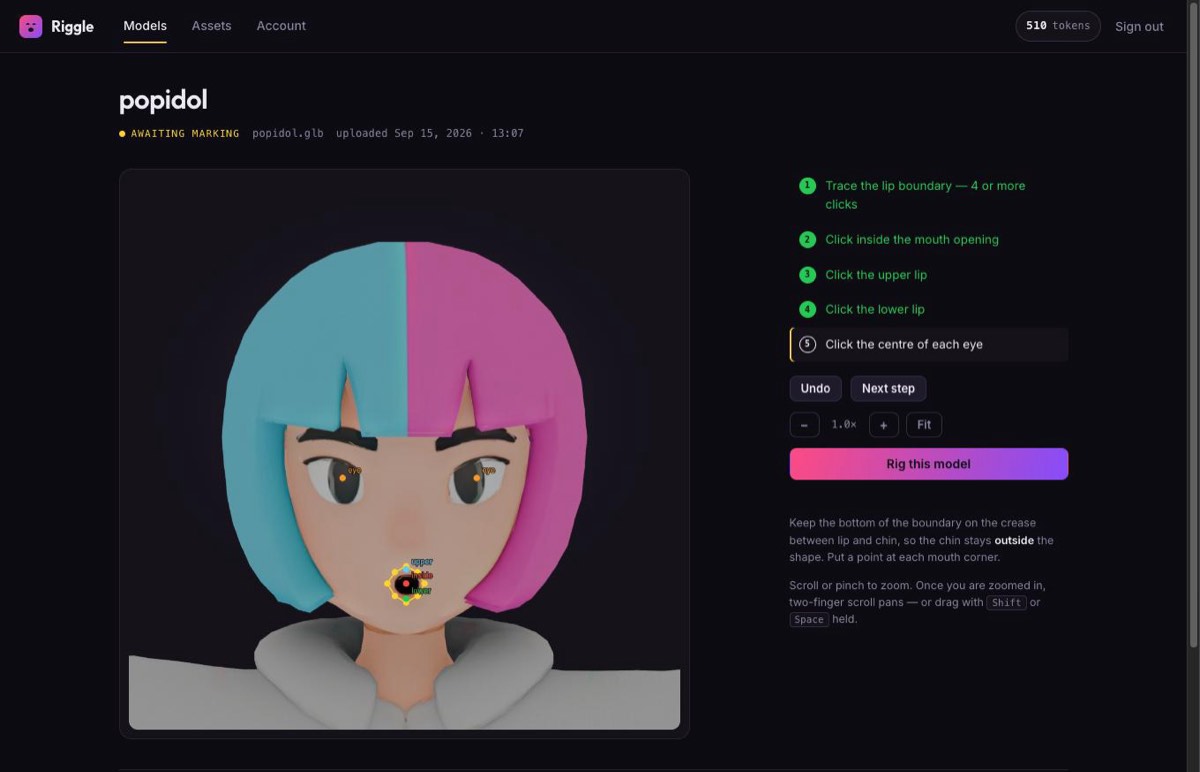
Upload the GLB. Riggle maps the Mixamo bones, faces the model forward, bakes an A-pose into a T-pose if needed, and shows you the face. Then:
- Trace the lip boundary - four or more clicks around the outer edge of the lips, with a point at each corner and the bottom edge on the crease above the chin.
- Click inside the mouth opening.
- Tag the upper lip, then the lower lip - one click each.
- Click the centre of each eye - this pins the blink.
The marks tell Riggle where the lips are on your mesh, which is the one thing the geometry does not say. If the character's mouth was modelled open, the visemes are built from that real opening; if it was modelled closed, they are a softer procedural approximation.
What you get back
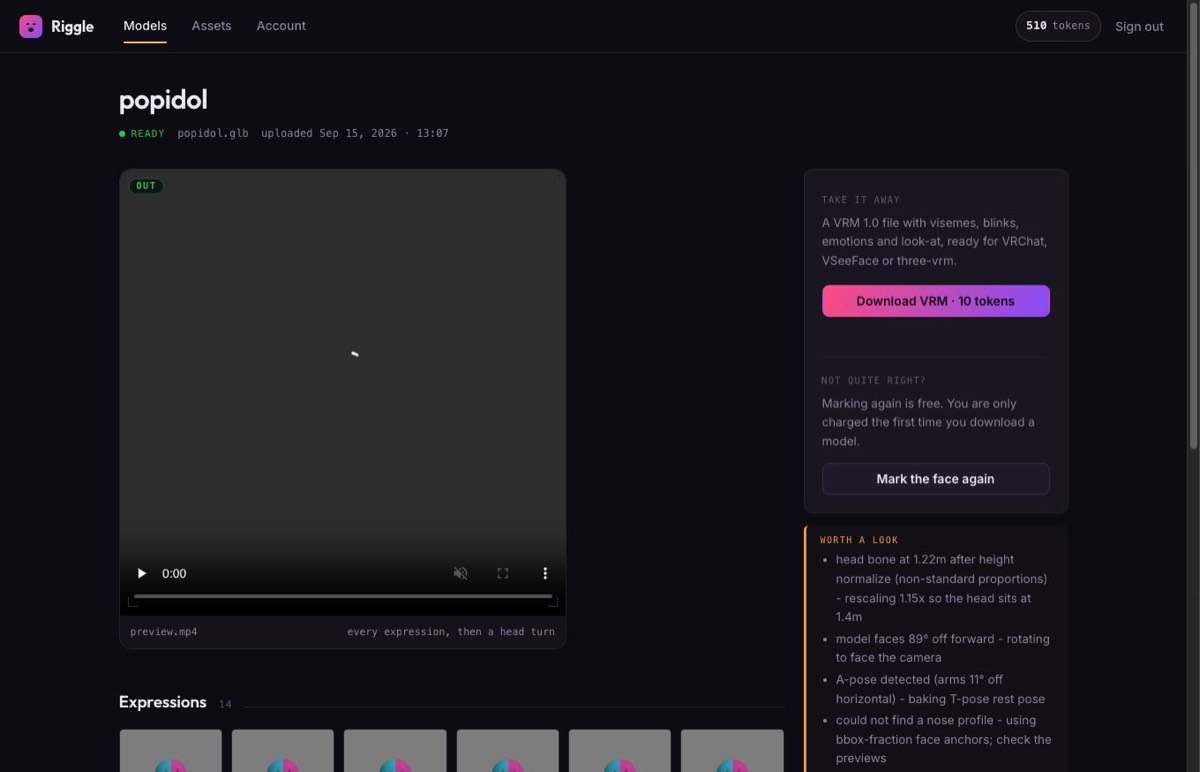
The download is a VRM 1.0 with the humanoid bones mapped and the expression set bound: the five visemes (aa, ih, ee, oh, ou), blink with independent left and right, happy, angry and surprised, and eye look-at when the rig has eye bones. Before you pay anything, Riggle loads the file in a real VRM renderer, drives every expression, and shows you a video of the whole set - an expression that exists but does not visibly move is flagged rather than shipped.
Mixamo characters often have simple, painted-on eyes with no lid geometry. Those still blink - the eye area squashes shut - which reads well at streaming distance but is not a modelled eyelid.
Give your Mixamo character a face
Upload the GLB, mark the lips and eyes in twenty seconds, and watch it speak and blink before you download. Your first model each month is free.
Rig my modelFAQ
Can I upload the Mixamo FBX directly?
No. Riggle accepts .glb and .vrm. Export the FBX to GLB in Blender first; it takes two menu clicks and Blender is free.
Does Mixamo's rig work with VRM?
Yes. Mixamo's skeleton has every bone VRM's humanoid map requires, and Riggle recognises its mixamorig: names directly, so the bone mapping needs nothing from you.
Can I convert Mixamo to VRM without Unity?
Yes. Blender does the FBX-to-GLB export and Riggle does the VRM conversion and the face in the browser. Unity and UniVRM are not needed.
Will the Mixamo character have lip sync?
Yes, once it is marked. Mixamo gives the face nothing, so Riggle builds the five visemes that VTuber apps drive for lip sync from your lip and mouth marks, plus blink, blinkLeft, blinkRight, happy, angry and surprised.
Can I use a character from Mixamo's own library?
Technically yes, but check Adobe's terms for using Mixamo characters as your own avatar before you stream or sell with one. Your own mesh, auto-rigged by Mixamo, avoids the question.
Will the VRM work in my VTuber app?
Riggle exports VRM 1.0. Apps built on three-vrm, and other software that reads VRM 1.0, load it as-is; some VTuber software still only reads the older VRM 0.x and will refuse a 1.0 file. Check which version your app supports before you plan a stream around it.
How much does it cost?
Uploading, marking, re-marking and every preview are free. Downloading a finished VRM costs 10 tokens, once per model, and the free plan includes 10 tokens a month - one finished avatar a month at no cost.