Meshy to VRM — from a Meshy character to a talking avatar
Meshy will take you from a prompt or an image to a textured, rigged humanoid in minutes. Then the trail goes cold: the export walks and turns its head, and its face is a single frozen surface.
To turn a Meshy character into a VRM: rig it in Meshy as a humanoid, download it as GLB, and upload the GLB to Riggle. Riggle maps Meshy's skeleton onto VRM bones, then asks you to mark the lips and eyes on a front view of the face - about twenty seconds - and returns a VRM 1.0 with five visemes, blinks and three emotions, plus a video of every expression. No Blender or Unity is involved, and the single biggest quality factor is generating the character with its mouth open.
Generate with the mouth open
This is the decision that matters most, and it is made before you rig anything. Riggle builds its best visemes from the mouth your model already has: it seals the modelled opening shut to make the resting face, and the aa viseme is your model's own open mouth coming back, with real teeth and depth behind it.
A Meshy character generated with closed lips has no opening to reopen. It still converts, but its visemes are a softer procedural approximation. So prompt for it - or, if you start from an image, use a reference where the mouth is clearly open. The AI image to VRM guide has a reference prompt that works on the first try.
Step 1 - rig and export from Meshy
Generate and texture the character, then use Meshy's rigging on it as a humanoid. A full-body figure standing straight with arms away from the body gives the auto-rigger the easiest job. Download the rigged model as GLB.
If the download includes an animation, that is fine: Riggle puts the model back in its bind pose before converting. Scale and facing do not matter either - Riggle measures and corrects both.
Step 2 - upload and mark the face
Upload the .glb (up to 100 MB). Riggle maps the skeleton onto the VRM humanoid bones by name pattern and hierarchy, and repairs the common case where hips and spine hang side by side off a shared root. Then it shows you the face:
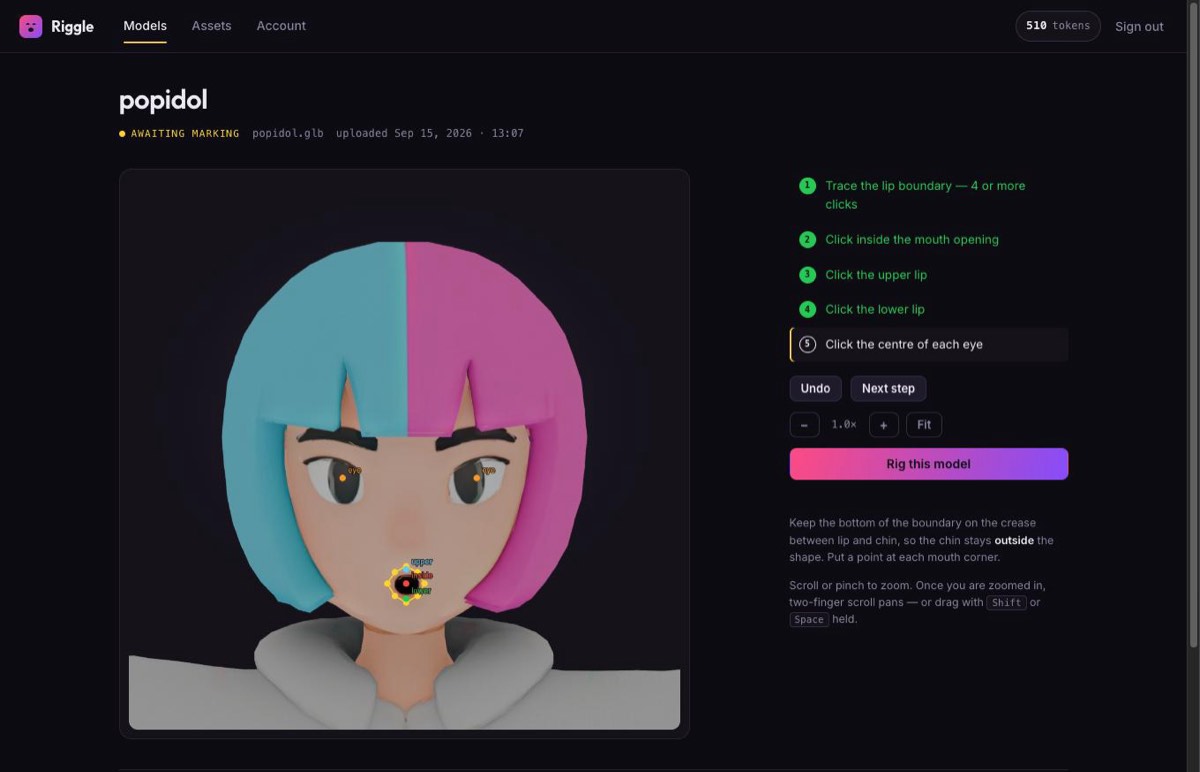
- Trace the lip boundary - four or more clicks around the outer edge of the lips, with a point at each corner and the bottom edge on the crease above the chin.
- Click inside the mouth opening.
- Tag the upper lip, then the lower lip - one click each.
- Click the centre of each eye - this pins the blink.
Press Rig this model. If the mouth does not open the way you want, re-mark it with a slightly different lip boundary - as many times as you like, free.
What you get back
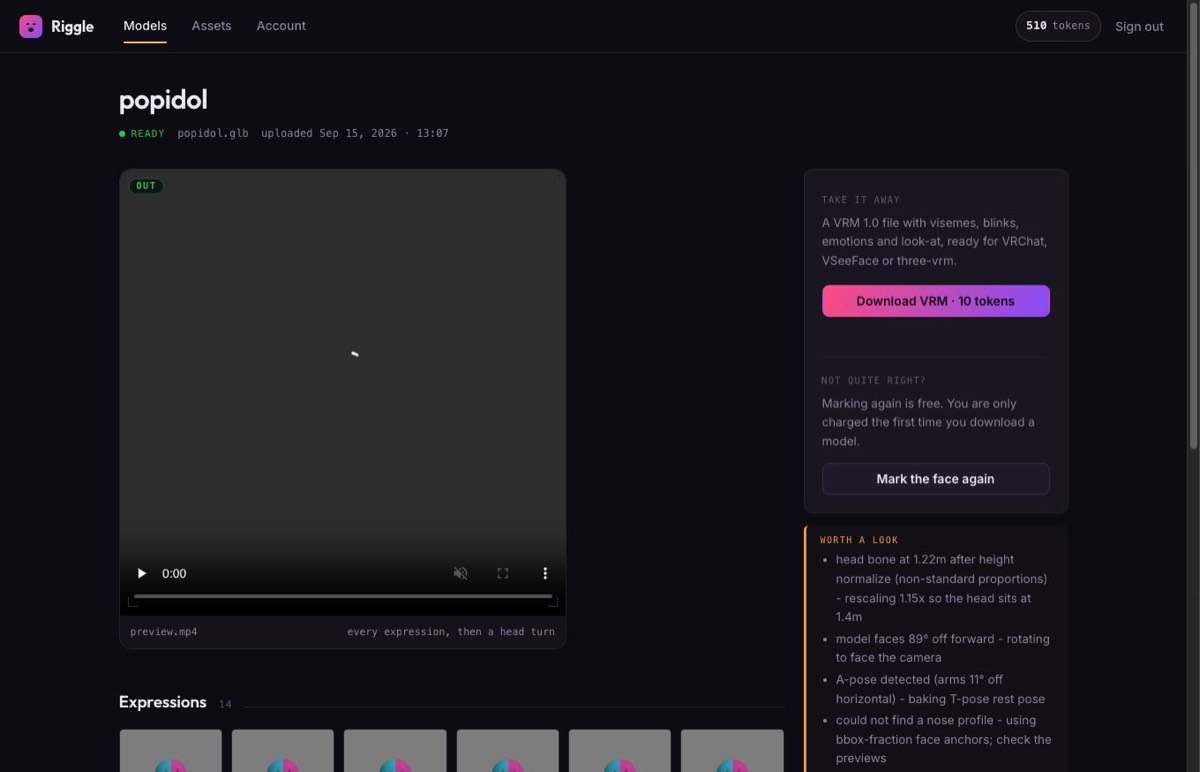
The download is a VRM 1.0 with the humanoid bones mapped and the expression set bound: the five visemes (aa, ih, ee, oh, ou), blink with independent left and right, happy, angry and surprised, and eye look-at when the rig has eye bones. Before you pay anything, Riggle loads the file in a real VRM renderer, drives every expression, and shows you a video of the whole set - an expression that exists but does not visibly move is flagged rather than shipped.
What it does not do: it does not rig an unrigged mesh (the skeleton has to be there already), it does not build the 52-shape ARKit "perfect sync" set - see why perfect sync is a different job - and it cannot invent teeth and a mouth cavity that were never modelled. A character whose mouth was generated closed still converts, but its visemes are a softer procedural approximation.
Meshy, Tripo or Mixamo?
All three end in the same place. Tripo goes from one image to a rigged GLB in one sitting and is the path shown in the AI image to VRM guide. Mixamo rigs a mesh you already have, but downloads FBX, which needs one export to GLB. Meshy sits in between: generation and rigging in one tool, and a GLB you can upload directly.
Bring your Meshy character to life
Upload the rigged GLB, mark the face in twenty seconds, and watch every expression play back before you download. Your first model each month is free.
Rig my modelFAQ
Does Meshy export VRM?
Not with a working face. A rigged Meshy export has a skeleton but no morph targets for the mouth or eyes, so even a direct format conversion gives you an avatar that cannot lip sync or blink. Riggle builds those from your marks and exports the VRM 1.0.
Can I convert Meshy to VRM without Blender or Unity?
Yes. Export the rigged GLB from Meshy, upload it to Riggle, mark the face and download. Blender runs on our servers; you never install it, and Unity and UniVRM are not used.
My Meshy model is not rigged. What now?
Rig it first, in Meshy or with Mixamo's free auto-rigger. Riggle converts rigged humanoids; it does not create skeletons.
Will it lip sync?
Yes. VTuber apps drive the VRM's five visemes (aa, ih, ee, oh, ou) for lip sync, and Riggle builds all five, plus blink, blinkLeft, blinkRight, happy, angry and surprised. It does not build the 52-shape ARKit perfect-sync set.
Can I stream or sell with it?
Riggle claims nothing over what you convert. Commercial use is governed by Meshy's licence for the generated model, which depends on your Meshy plan - check it before you monetise the character.
Will the VRM work in my VTuber app?
Riggle exports VRM 1.0. Apps built on three-vrm, and other software that reads VRM 1.0, load it as-is; some VTuber software still only reads the older VRM 0.x and will refuse a 1.0 file. Check which version your app supports before you plan a stream around it.
How much does it cost?
Uploading, marking, re-marking and every preview are free. Downloading a finished VRM costs 10 tokens, once per model, and the free plan includes 10 tokens a month - one finished avatar a month at no cost.